 KDP Metric
Getting started
KDP Metric is a Chrome side panel. It reads the Amazon page you're on and turns it into research, right beside the page.
Quick start
- Install it. Add KDP Metric from the Chrome Web Store. It's free, with no account and no sign-up.
- Pin it. Click the jigsaw-piece Extensions icon in Chrome's toolbar, then the pin next to KDP Metric, so its icon is always one click away.
- Open Amazon. Search for a phrase your reader would type — say cozy mystery — or open a Best Sellers list or any book's page.
- Open the side panel. Click the KDP Metric icon. The panel docks on the right and updates by itself as you move between Amazon pages.
- Read the answer. On a search page you'll see the niche's A–F grade straight away. On a book page you'll see that book's details and categories.
For true public prices, research in a private (incognito) window. Amazon sometimes personalises prices for signed-in shoppers. To use the extension there, open chrome://extensions, choose Details on KDP Metric and turn on Allow in Incognito.
A tour of the panel

| Control | What it does |
|---|---|
| Simple / Advanced | Simple shows the verdict and the essentials. Advanced opens every tool, filter and number. Free and Pro both have it. |
| 💡 Playbook | Short, fact-checked guides from our articles, grouped by topic. They open in a new tab. |
| ☆ Tracked books | Books you've pinned to watch over time — see Tracking. |
| 🧭 Discover | One-click links to Amazon's trending lists — see Discover. |
| ↻ Refresh | Re-reads the current Amazon page. Use it if the panel looks out of date. |
| ☀ Theme | Switches between light and dark. |
In Advanced mode, a search or Best Sellers page gets four numbered tabs, in the order you'd naturally work:
- Research — sub-tabs Results (the competition table), Niche Grade, Coach and Category Scout Pro.
- Keywords — the Keyword Explorer.
- Assets — sub-tabs Titles (Title Optimizer and word cloud) and Covers.
- AI Brief — prompts loaded with this niche's data (one free, the rest Pro).
At the bottom of the panel, What's new shows the latest changes and Feedback sends us an anonymous note.
Pages and stores that work
| Amazon page | What you get |
|---|---|
| Search results | Niche grade, competition table, Coach, category finder, keywords, titles, covers. |
| Best Sellers list | The same, plus a Demand reading and sales estimates, because these lists show each book's rank. |
| A category inside Best Sellers | Grades that category, so you can hunt for winnable shelves. Pro adds Category Hunter. |
| A book's page | The book view — see The book page. Pro adds the Report Card, Category Scout and the publishing toolkit. |
It works on all 12 major Amazon stores: .com, .co.uk, .de, .fr, .es, .it, .ca, .com.au, .co.jp, .in, .sg and .ae. Prices, ratings, review counts and ranks are read in each store's own format.
Research a niche
Everything in this part is free. The goal is to find a lane where readers are clearly buying, but the leading books aren't impossible to sit beside.
Simple mode at a glance Free
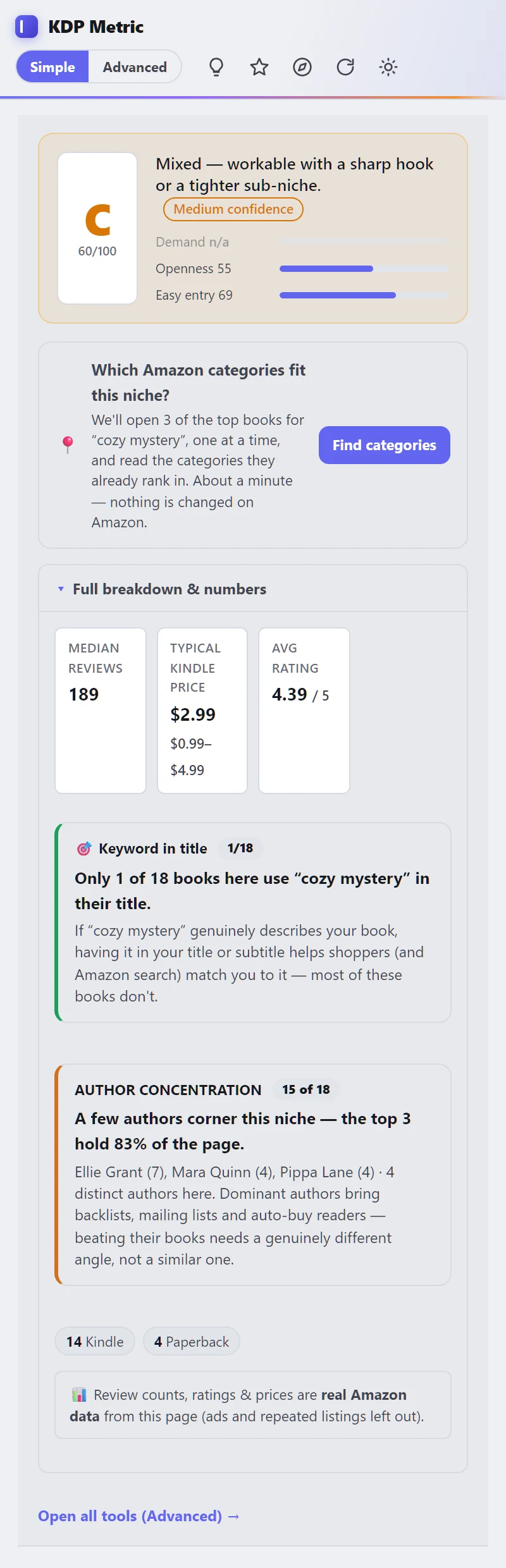
Simple mode answers one question — is this niche worth a closer look? — and shows only what supports the answer:
- The grade and its confidence (next section).
- The category finder — find which Amazon categories the niche's top books sit in.
- Median reviews, typical price and average rating — the bar a new book is measured against.
- Keyword in title — how many books use your search phrase in their title. If few do, and the phrase genuinely describes your book, using it in your title or subtitle helps shoppers and Amazon match you to it.
- Author concentration — whether a few authors own the page. Dominant authors bring backlists and auto-buy readers, so beating them needs a genuinely different angle.
Click Open all tools (Advanced) at the bottom whenever you want the detail.
The A–F Niche Grade Free
The grade is one verdict on the opportunity to publish into this niche. It blends three sub-scores, each 0–100 where higher is better for you:
| Sub-score | Question it answers | Built from |
|---|---|---|
| Demand | Are readers buying here? | Modelled sales from Best Sellers Ranks. Only on Best Sellers and category lists — search pages don't show ranks, so it reads n/a there and the grade uses the other two. |
| Openness | How entrenched are the leaders? | The median review count. Fewer reviews = more open. |
| Easy entry | How low is the bar to join the pack? | The review count of the lower quarter of books. Fewer = easier to join. |
A and B are genuinely soft niches. C and D are contested: workable with a sharp hook or a tighter sub-niche. F is brutal. A popular phrase landing on C or D isn't a bug — it's telling you the leaders are entrenched.
The confidence badge
Next to the grade, High, Medium or Low confidence tells you how much to trust it. Hover over the badge to see the reasons. A page with only a handful of real books, missing ratings or no rank data gets a lower confidence — so a thin page never looks as certain as a full one.
Read it like a market summary, not a promise. A strong grade means "this lane deserves serious attention". Your cover, title, blurb and sample still decide whether you convert the opportunity.
The competition table Free
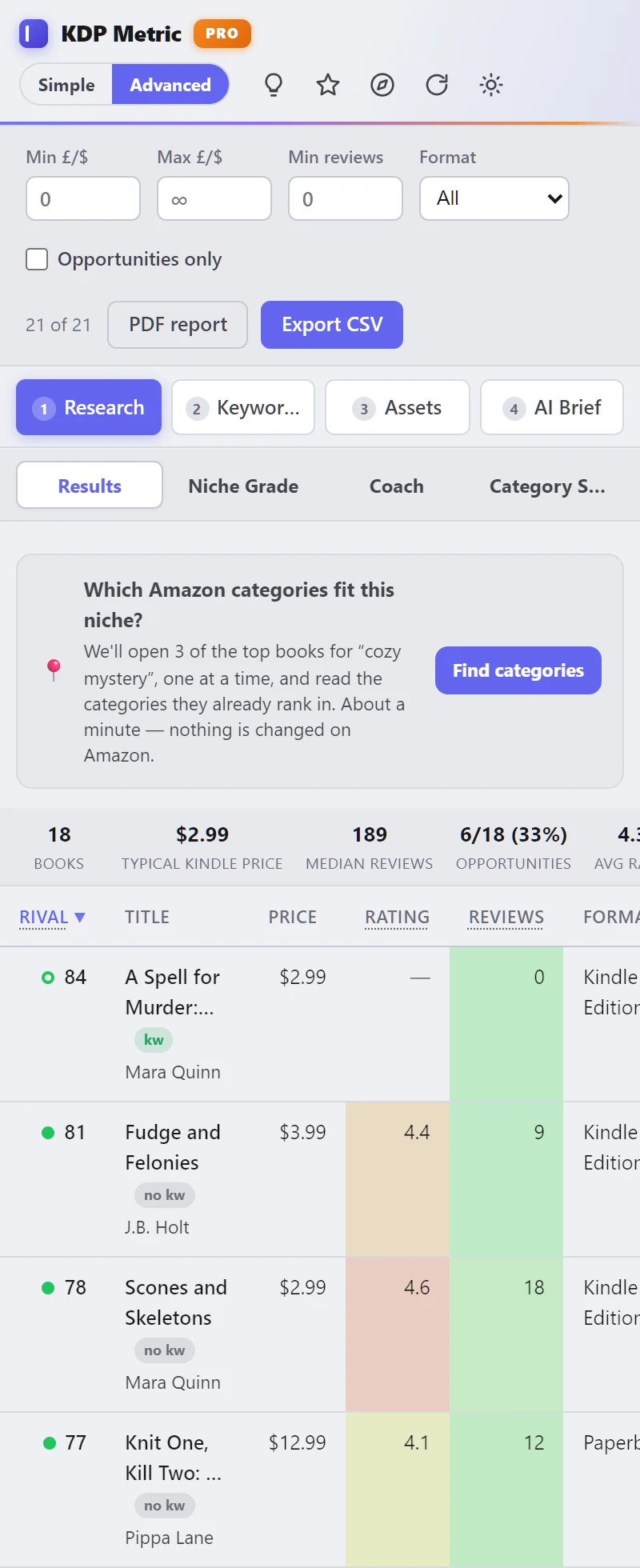
In Advanced mode, Research → Results lists every book on the page with its Rival score: how beatable that one book is, from 0 to 100. A high score means thin reviews and a decent rating — a soft target to sit beside. Sort by any column; cells are tinted green (beatable) to red (strong).
Under each title, kw means the book uses your search phrase in its title, and no kw means it doesn't.
The stats strip
Above the table: the number of books, the typical price for the main format, median reviews, how many books are opportunities (fewer than 50 reviews and at least 4.0★ by default — change it in settings), average rating, the share of Sponsored results and the share that belong to a series.
Filters
Narrow the table by price, minimum reviews or format, or tick Opportunities only. Filters change only what you see in the table — never the grade, which always reflects the whole page.
Ads don't count. Sponsored results and repeated listings are left out of the grade, medians, prices and title words, because they show who's paying for visibility, not who's selling. The Sponsored share is still shown so you can see how hard advertisers fight for the phrase.
Strategy Coach Free
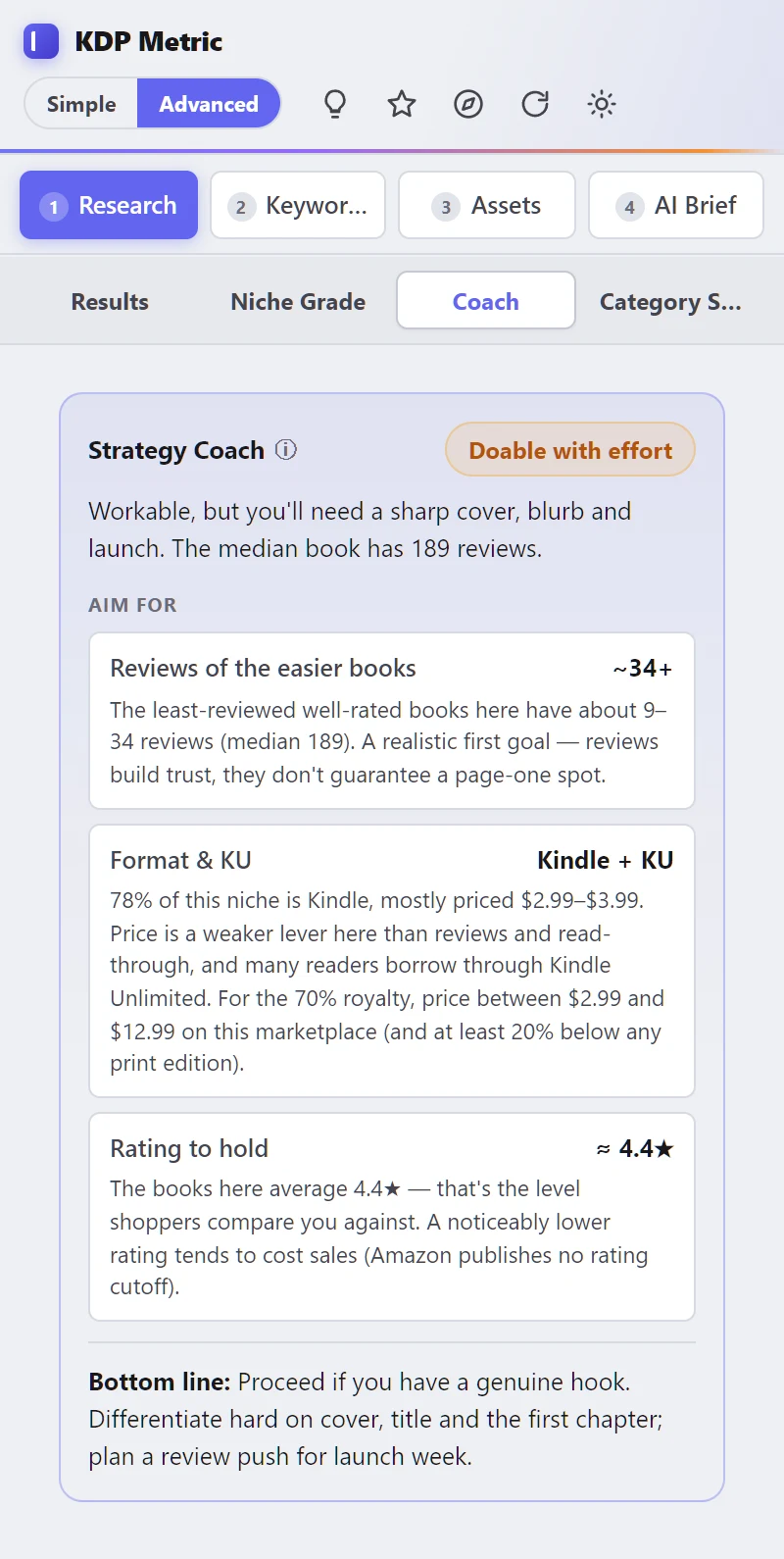
Research → Coach turns the numbers into a brief. It's rule-based — no AI, no guesswork:
- An overall call such as Doable with effort, with the reason.
- Reviews to aim for — what the easier, well-rated books here have. It's a realistic first goal for honest reviews; reviews build trust, they don't guarantee a page-one spot.
- Format & Kindle Unlimited — what the niche is mostly made of and the typical price. If you're in KDP Select, the eBook must be exclusive to Amazon while enrolled.
- Rating to hold — the niche average, which is what shoppers compare you against.
- Bottom line — enter, enter with a sharper angle, or look elsewhere.
Passing on a bad market is a win: the Coach is there to protect your time as much as to encourage you.
Category finder Free
On a search page, the card Which Amazon categories fit this niche? finds the shelves the niche's top books already sit in.
- Click Find categories.
- KDP Metric opens three of the top books for your search, one at a time, in your tab, and reads the categories each one ranks in. It takes about a minute and changes nothing on Amazon.
- You get the best-supported category — the one most of those books share, with ties going to where they rank highest — plus the others it found.
It appears on search pages only. On a Best Sellers list you're already inside one category.
Keyword Explorer Free
The Keywords tab takes your search phrase and, when you click Expand, asks Amazon's own search-bar suggestions for related phrases — what real shoppers type after your words. Click any suggestion to open that search and grade its competition.
Use it to find lanes, not to stuff metadata. A suggestion tells you people search for it. Whether you should use it depends on whether it honestly describes your book — see KDP rules.
Titles & covers Free
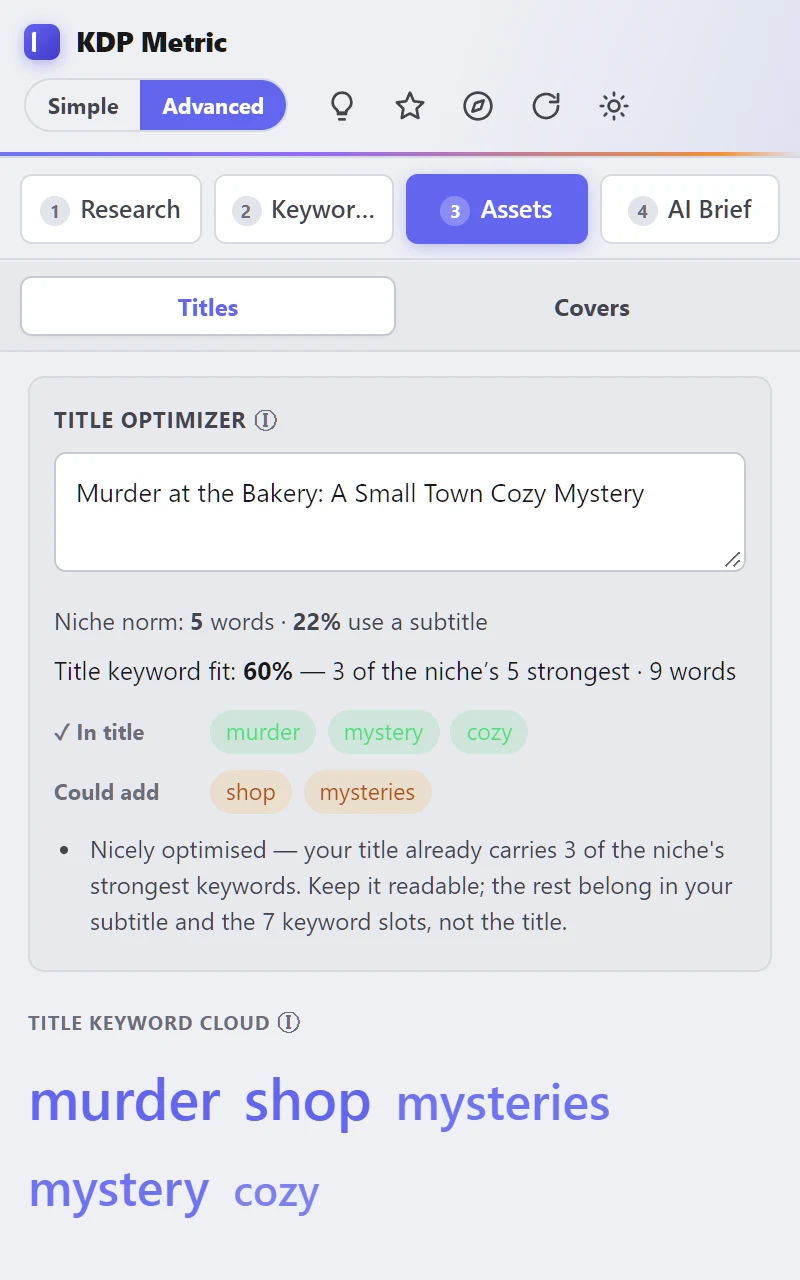
Assets → Titles has two tools:
- Title Optimizer — type your working title. You'll see the niche's typical title length and how many use a subtitle, which of the niche's strongest words your title already carries, which you could add, and a short tip. Keep the title readable: the rest belongs in the subtitle and the 7 keyword boxes.
- Title keyword cloud — the hooks and tropes that recur across the niche's titles, sized by how often they appear.
Assets → Covers lays out every competitor cover on the page in one grid — the fastest way to see the genre's visual conventions, and how to stand out within them.
Discover trending Free
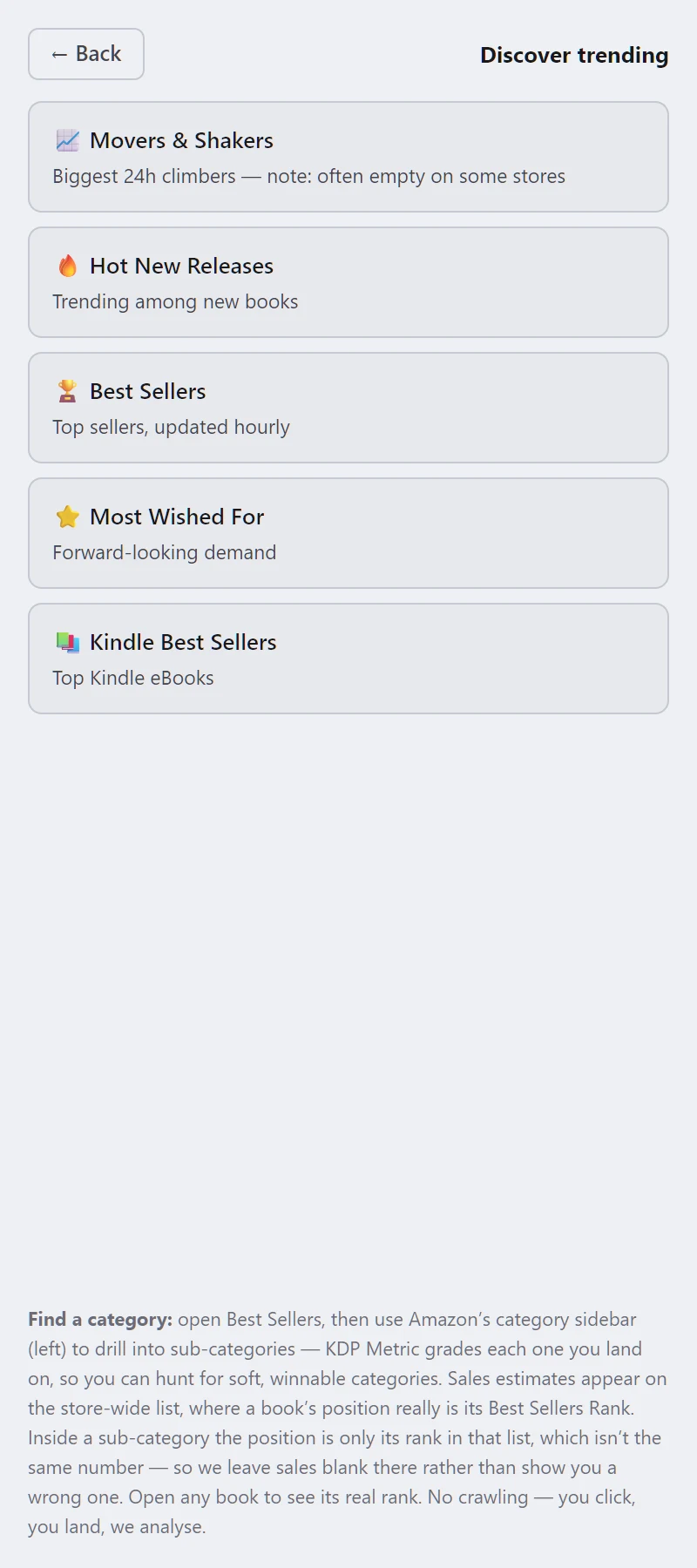
The 🧭 button opens one-click links to Amazon's Movers & Shakers, Hot New Releases, Best Sellers, Most Wished For and Kindle Best Sellers. Each is analysed the moment it loads.
Hunting for a winnable category
- Open Best Sellers from Discover.
- Use Amazon's category sidebar on the left to drill into sub-categories.
- KDP Metric grades each category you land on. Look for B grades with decent demand.
Why sales are blank inside a sub-category: on the store-wide list, a book's position is its real Best Sellers Rank, so we can estimate sales. Inside a sub-category, the position is only its place in that list, which is a different number. We leave sales blank there rather than show a wrong one. Open any book to see its real rank.
A complete niche workflow
A repeatable recipe. Budget 20–30 minutes per idea.
- Start broad. Search the obvious phrase your reader would type. Note the grade and its confidence.
- Read the field. In Results, sort by Rival. Are there several soft targets, or is the page all heavy hitters? Check the Sponsored share and author concentration.
- Read the Coach. What review count, price band and rating does this niche demand? Could your book meet that bar?
- Go narrower. Use Keyword Explorer and the title cloud to find 2–3 tighter phrases, such as a sub-genre, trope, setting or audience. Search each one and compare grades.
- Check demand. Open the matching Best Sellers category (Discover → Best Sellers → drill down) to get a Demand reading.
- Find the shelves. Run the category finder on your best phrase.
- Study 5–10 books, not one. Open the leaders and the soft targets (The book page). Track a few to see whether their ranks hold.
- Decide. Commit, sharpen the angle, or drop the idea. Write down why, so you can learn from it later.
With Pro, steps 4–6 can be guided: Category Scout AI suggests the searches, compares them for you and writes up a recommendation with calculated figures.
Study a book
Open any book's Amazon page — yours or a competitor's — and the panel switches to the book view.
The book page Free
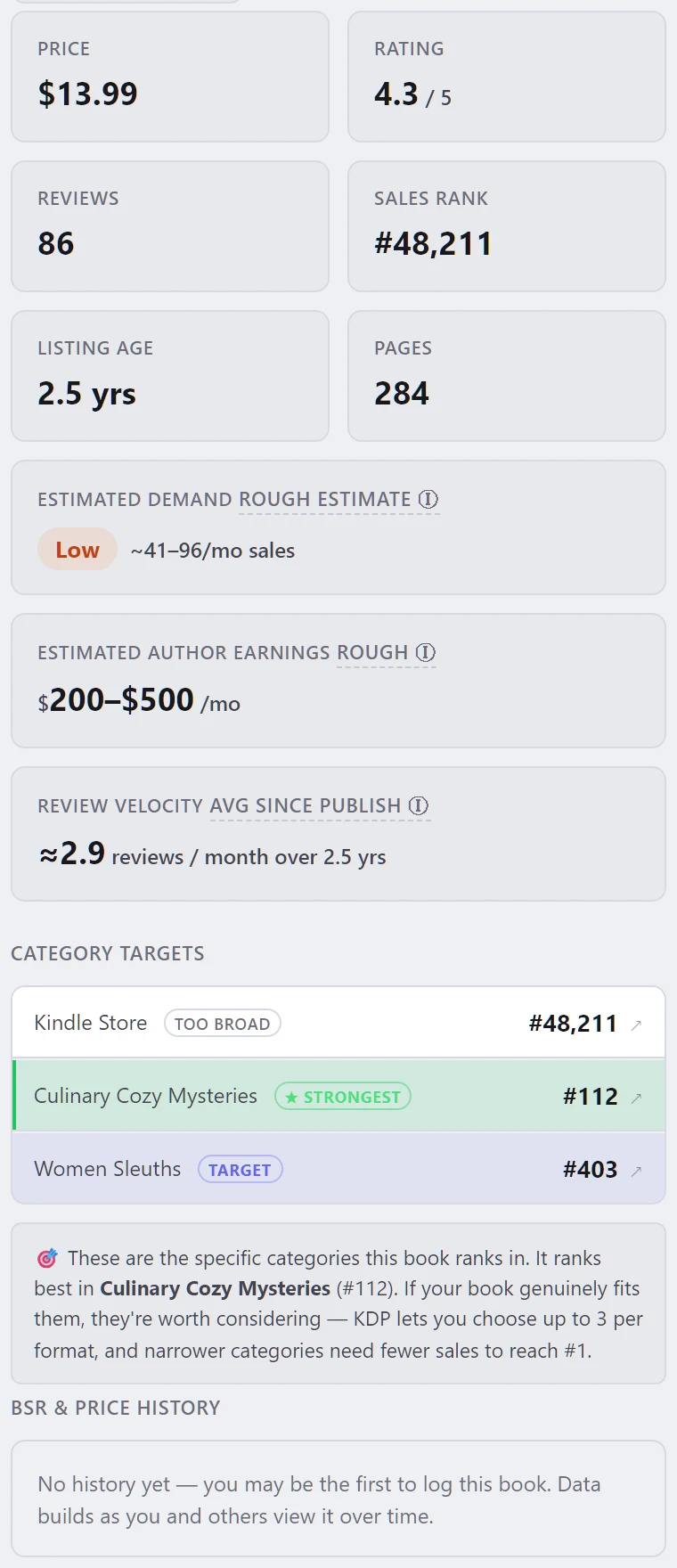
At the top: the title, author, format and a Self-published tag when the book is independently published. Click Show full details for:
- Price, rating, reviews, sales rank, listing age and pages.
- Estimated demand — a monthly sales range modelled from the book's overall rank, with a Low–Very high label.
- Estimated author earnings — sales × the royalty this format earns at this price, under KDP's current rules. It's a rough range, not the book's real income.
- Review velocity — the book's average reviews per month since publication.
- Category targets — the exact categories the book ranks in. Strongest marks where it ranks best, Target marks other specific shelves, and Too broad marks store-wide categories that are almost impossible to rank in. KDP lets you choose up to 3 categories per format; narrower ones need fewer sales to reach #1.
- BSR & price history — builds over time as people view the book (see Tracking).
How to study a competitor properly
- Is it winning on demand, or on a moat — a huge review count, a long series, a big-name author?
- Compare its price and reviews with the niche medians. Outliers are where the lesson is.
- Look at its categories: they show the neighbourhood it really competes in.
- Track it for a week or two before copying a conclusion from one day's rank.
Tracking & rank history Free Pro chart
- On any book's page, click ☆ Track.
- Each time you open that book again, today's rank, price, reviews and rating are added to its history.
- Open ☆ Tracked books in the header to see them all.
Free shows how many days have been recorded. Pro adds the rank trend chart for each tracked book, so you can see whether a launch, a price change or a promotion moved the needle.
Changing your own listing? Track the book first, so you have a "before" to compare against. Change one thing at a time, or you won't know which change helped.
CSV export Free
In Advanced mode, Export CSV saves the analysed table — including grades, Rival scores, estimates and each book's ASIN — as a spreadsheet for your own analysis.
Pro tools
Free tells you where to publish. Pro tells you what to do about your book. It's built into the same extension: add a licence key and it unlocks in place.
Getting Pro
- Click Get Pro in the panel's banner or the extension's popup, or on our pricing section. Checkout is handled by Polar, our merchant of record.
- Your licence key arrives by email straight after purchase. Check spam if it isn't there within a few minutes.
- In the panel's banner click I have a key (or use the popup), paste the key and click Activate. Pro unlocks immediately and a PRO chip appears in the header.
Pro is one payment, no subscription: lifetime use of the version you buy, plus 12 months of major updates and email support. One key works on up to 3 devices. Moving to a new computer? Click Deactivate on this device in the popup first, to free the slot.
Updates keep Pro on. When the extension updates through the Chrome Web Store, Pro stays unlocked — you never re-enter your key. Activating needs an internet connection once; after that Pro keeps working, with an occasional background check.
Niche verdict Pro
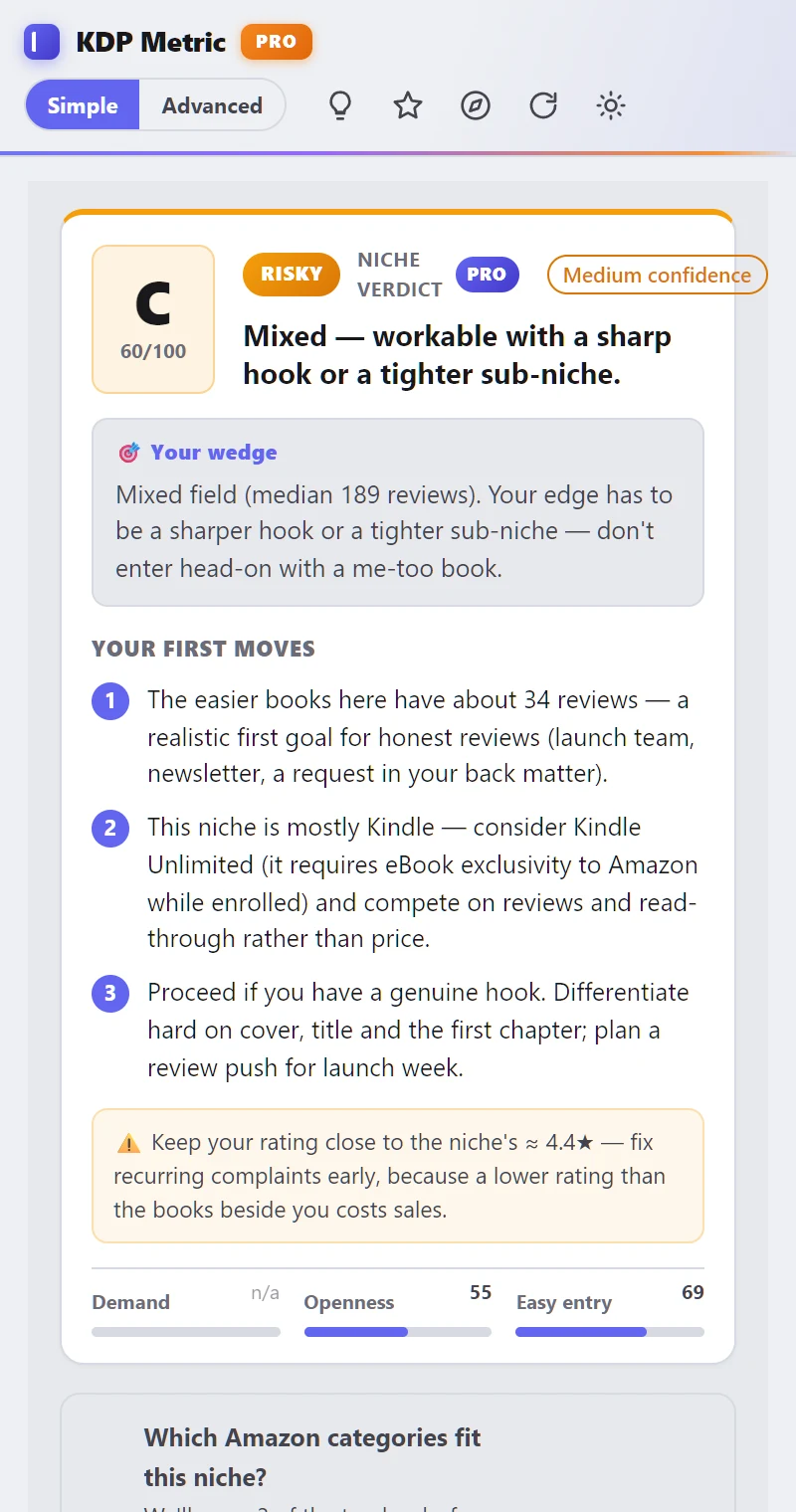
With Pro, the grade card on a search page becomes a fuller niche verdict:
- A one-word call — such as Risky — and a one-line summary.
- Your wedge — the angle that gives a new book a chance in this field.
- Your first moves — three concrete actions, such as a first review goal and whether to use Kindle Unlimited.
- The same confidence badge and sub-scores as the free grade.
Book Report Card & recovery plan Pro
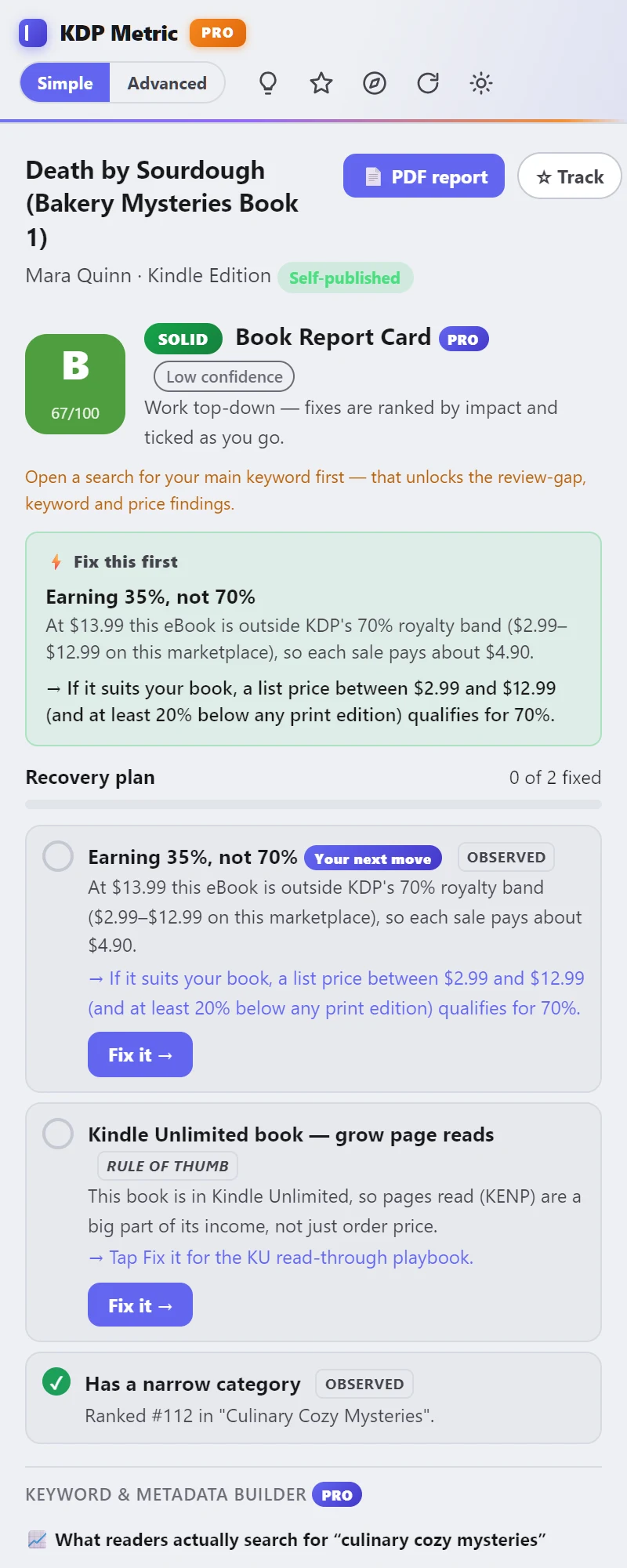
Open any book's page — usually your own — for its Book Report Card (called Book Audit on the free preview card): a visibility grade with a confidence badge, and the fixes that matter, worst first.
- Search your main keyword first. The Report Card compares the book with that niche to find review-gap, keyword and price issues. Without it you'll see a reminder and fewer findings.
- Read "Fix this first". It's the single change most likely to help — for example, an eBook priced outside KDP's 70% royalty band.
- Work through the recovery plan. Each item has a Fix it → button with a step-by-step playbook. Tick items off as you do them; the plan remembers your ticks for that book.
Each finding is labelled so you know how solid it is: Observed (read from the page), Calculated (worked out from the niche) or Rule of thumb (good practice, not a hard rule).
Category Scout AI Pro
Category Scout is an assistant that helps you find the categories and search phrases your book can win. It runs on Chrome's built-in AI, on your own computer: no API key, no usage fees, and nothing you discuss is sent to us.
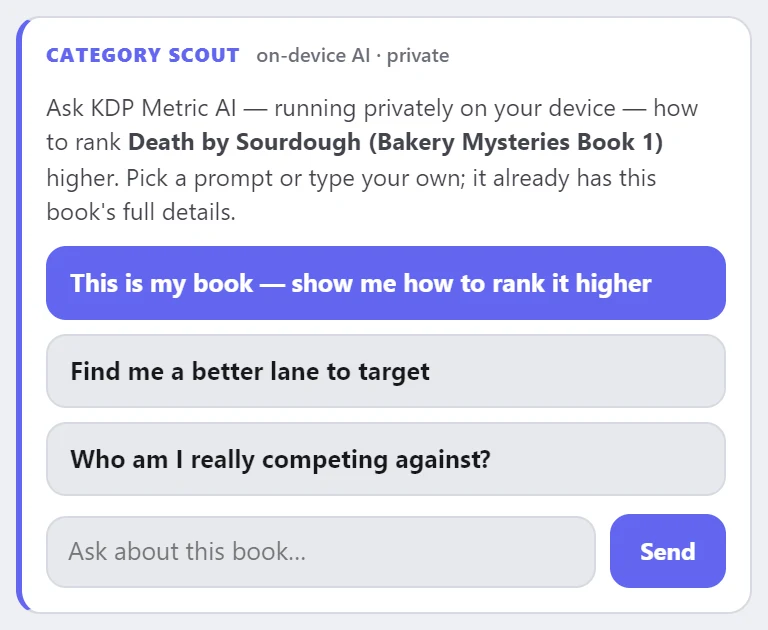
Running a Scout session
- Open your book's Amazon page with the panel open. Scout already knows the book: title, description, categories, price, reviews and rank.
- Pick a starter — This is my book — show me how to rank it higher, Find me a better lane to target or Who am I really competing against? — or type your own question.
- Click the suggested searches. Scout replies with search buttons (🔍). Each click opens that Amazon search, and the page's real data is fed back into the chat automatically. Finished searches get a tick, and clicking one again just tells you it's already compared.
- Your book stays in view. While you're on search pages, a compact Your book card shows its price, rating, rank, categories and Report Card grade, with a ← Back to my book page button.
- Get the recommendation. Once enough searches have been compared, Scout writes its final report.
How Scout decides — and why it sometimes says "not yet"
- Each search is a "lane". Every lane gets a market score from its page and a book-fit score — how well the phrase matches your book's title, description and categories. Lanes that don't fit your book can't win, however soft they look.
- It waits for evidence. No verdict until at least three searches that fit your book have been compared, or two with a clear standout. If the AI tries to answer too early, you'll see what's been compared so far and Scout automatically asks for better searches.
- Want an answer now? Type something like just give me your recommendation. You'll get a clearly labelled Provisional report at Low confidence.
- Ties are called ties. Two lanes within half a point (out of 10) are treated as level, and the report tells you to judge which wording your readers would really type.
- Story details aren't search terms. If a phrase appears in under 10% of the result titles, it may describe your plot rather than what readers search for. It loses a point, and the report warns you.
Anatomy of the final report
The figures are calculated by code from the pages you compared, so the AI can't invent them. The AI only writes the advice around them:
Saving your session
Every reply has a copy button, and ⧉ Copy all copies the whole conversation. The chat clears when the side panel closes, so copy anything you want to keep. Reset starts a fresh conversation about the same book.
Requirements
- An up-to-date desktop Chrome with built-in AI available, on a reasonably modern computer.
- The first time, Chrome downloads its AI model once — a multi-gigabyte, one-time download. The panel tells you whether your computer can run it and when it's ready.
- If built-in AI isn't available, every other Pro feature still works. Where it's offered is controlled by Google, not us — see our terms.
Use it as a well-briefed assistant, not an oracle. The figures are calculated, but the risk, keywords and hook are written by a small on-device model. Search any keyword yourself on Amazon before you use it in KDP.
Keyword & Metadata Builder Pro
On a book's page, below the Report Card, the builder shows what readers actually search for in the book's niche and fills KDP's 7 keyword boxes for you:
- Phrases come from Amazon's live search suggestions and the niche's proven title words.
- Each box stays within 50 characters, with one angle per box and no words already in your title.
- Anything that breaks KDP's metadata rules is filtered out: other authors or titles, Amazon programme names, sales claims and trademark-risk terms.
- If live suggestions run thin, ✨ Suggest with AI asks the on-device AI for more candidates. They're marked and pass through the same filter. Check each one with a real Amazon search before you use it.
Copy each box straight into KDP's keyword fields.
Publishing toolkit Pro
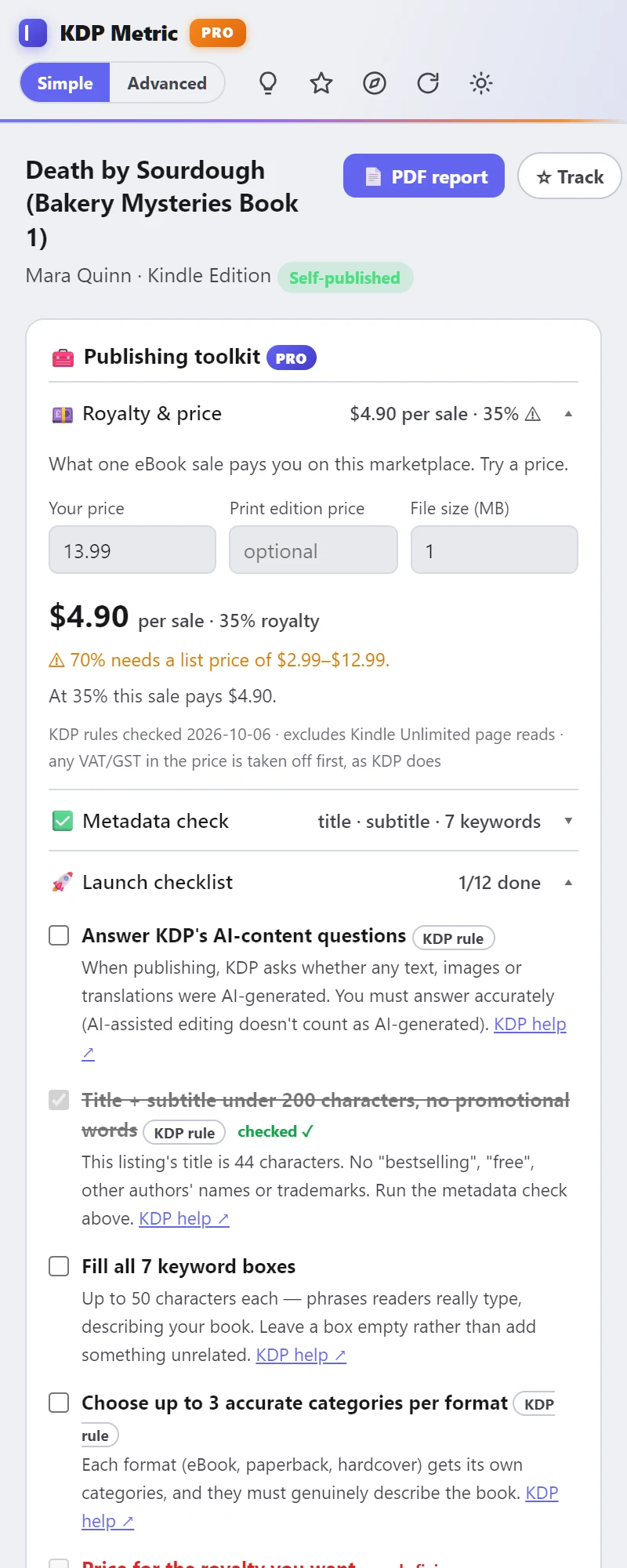
On a book's page, the Publishing toolkit groups three tools. Each one's summary line gives the one-glance answer; click to open it.
💷 Royalty & price checker
What one sale pays you at any price, using KDP's own formulas:
- eBooks: 70% × (list price − VAT − delivery fee) inside the store's 70% band, otherwise 35% × (list price − VAT). In the US the 70% band is $2.99–$12.99 since KDP's change of 7 July 2026, and the eBook must also be at least 20% cheaper than any print edition.
- VAT and GST are included in EU, Australian and Japanese prices. KDP takes them off before the royalty, and so do we.
- Japan (and Brazil, Mexico and India) pays 70% only to eBooks enrolled in KDP Select. If we can't see a Kindle Unlimited badge, we say so and show the 35% figure too.
- Paperbacks: 60% of the list price (50% below the store's threshold) minus the printing cost. On EU stores, the price you see on Amazon includes VAT, so we work back to your KDP list price first.
Try different prices, the file size, or a print-edition price to see the effect immediately. The same rules power our free royalty calculator.
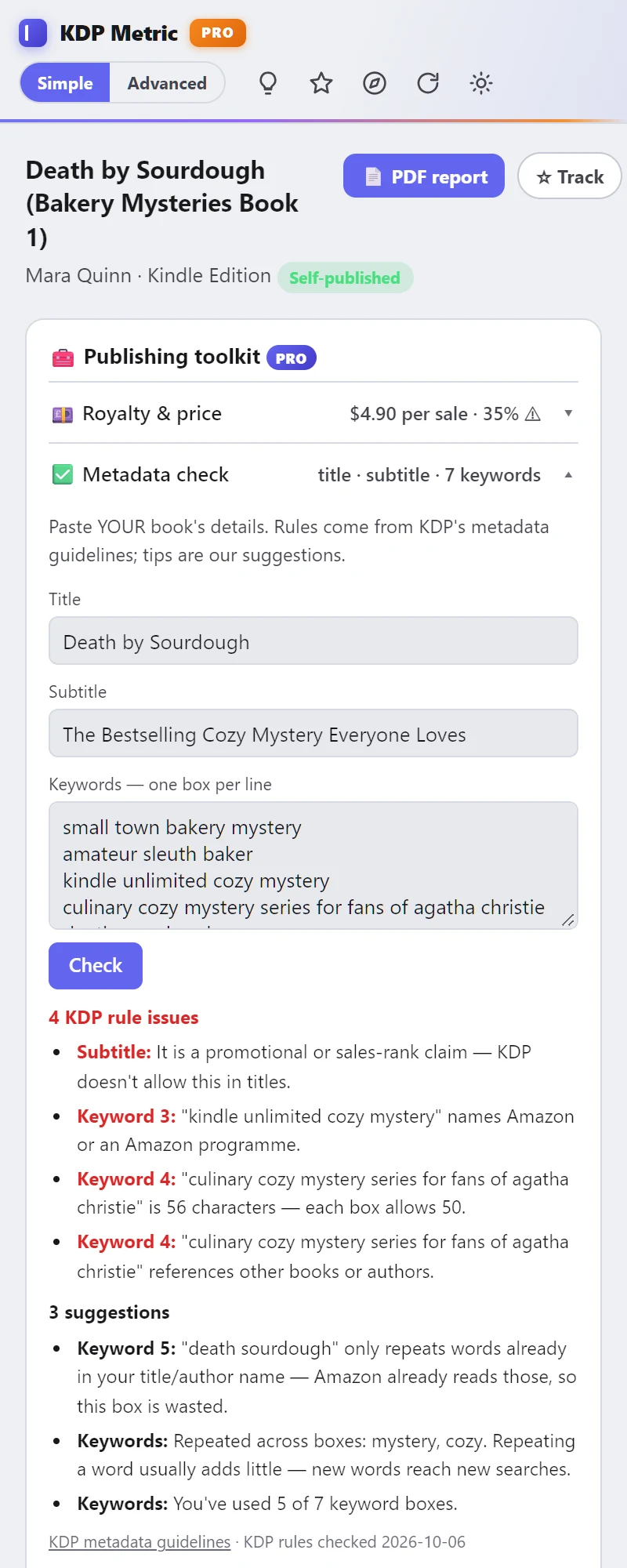
✅ KDP metadata check
Paste your title, subtitle and keywords (one box per line) and click Check. Results come in two groups:
- KDP rule issues — things KDP's metadata guidelines don't allow: titles and subtitles of 200 characters or more, sales claims like "bestselling", Amazon programme names, other authors or book titles, links, placeholder text, keyword boxes over 50 characters.
- Suggestions — not rules, but wasted space: keywords that only repeat your title, words repeated across boxes, unused boxes.
🚀 Launch checklist
About a dozen KDP steps matched to the book's format — the AI-content questions, the title limit, all 7 keyword boxes, up to 3 categories per format, pricing for the royalty you want, KDP Select, pre-orders, series linking, A+ Content, the Look Inside preview, a back-matter review request and KDP's new-title limit. Steps the page can confirm are ticked for you. Every step links to KDP's own help page, and your ticks are saved per book.
Niche AI Brief 1 free + 8 Pro
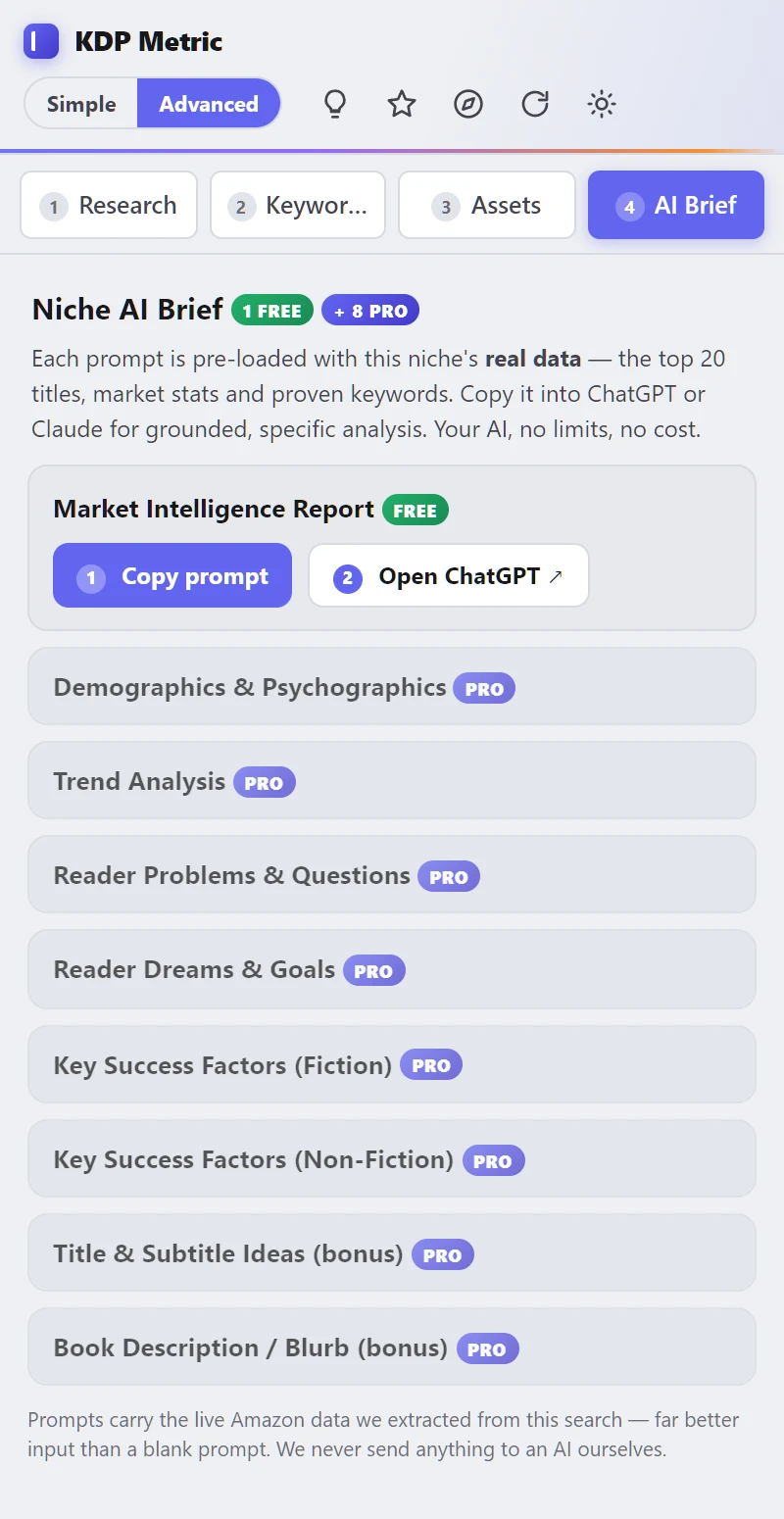
The AI Brief tab gives you expert prompts pre-loaded with the niche's real data — the top 20 titles, market stats and proven keywords. Click Copy prompt, then paste it into ChatGPT, Claude or any AI you already use.
The Market Intelligence Report prompt is free. Pro adds eight more: demographics and psychographics, trends, reader problems and questions, reader dreams and goals, key success factors for fiction and for non-fiction, and bonus title and blurb ideas.
KDP Metric never sends anything to an AI service itself — you choose where to paste.
Category Hunter Pro
On a Best Sellers category page, Category Hunter reads the top books' review counts to judge how entrenched that category's leaders are, and what it would realistically take to earn its #1 Best Seller badge. It's an honest Easy / Medium / Hard read. It only appears on category lists, because on a search page it would just repeat the grade.
PDF reports & branding Pro
Click PDF report on a niche or a book to export a clean report: the grade, strategy, competitors, keywords and the book's fixes. To brand it, open the extension's popup → Report branding and add your logo and name; they're stored only on your device. Then export and choose Save as PDF. It's useful for your records, or to hand to a client if you offer publishing services.
Pro's audit advice and keyword rules can also be refreshed without waiting for an extension update: popup → Intelligence pack → Update now.
Understand the numbers
KDP Metric is built to be honest about what it knows. Here's what's real, what's modelled, and why some numbers are deliberately left blank.
Real data vs estimates
| Kind | Examples | How much to trust it |
|---|---|---|
| Read from the page | Prices, ratings, review counts, ranks, formats, categories, publication dates | As accurate as Amazon's page. Ads and repeated listings are left out of every figure. |
| Calculated by rules | Royalties, KDP limits, the metadata check | Exact to KDP's published rules, which are dated and linked to KDP's help pages. Rules were last checked on 7 October 2026. |
| Modelled | Sales and earnings estimates, Demand | Shown as ranges, never single numbers. On amazon.com the model agrees with independent calculators to within roughly ±40%. Other stores have no public calibration, so their ranges are wider and marked low-confidence. |
| AI-written | Category Scout's risk, keywords and hook; AI keyword suggestions | Suggestions to verify. Always marked. |
Prices are only ever compared like for like: a $2.99 Kindle book is never averaged with a $14.99 paperback. If there are too few books of one format, the typical price shows "—" rather than a misleading mix.
Why a number is blank
- Demand is n/a on a search page — search results don't show sales ranks. Open a Best Sellers list for a demand reading.
- No sales estimate inside a sub-category — a book's position there isn't its Best Sellers Rank (see Discover).
- A free book shows "Free list" for its rank — free-list ranks can't be turned into sales, so we don't try. The same goes for Audible ranks and New Releases / Movers & Shakers positions.
- The typical price shows "—" — too few books of the main format to give an honest figure.
- No royalty figure — we don't have verified KDP figures for that store or format yet. Use KDP's own pricing page.
KDP rules & best practice
KDP Metric helps you read the market, but KDP rewards clean, accurate metadata. These points summarise KDP's published policies as of October 2026. Policies change, so check KDP's help pages before acting on a borderline case.
The rules that matter most
| Rule | What it means for you |
|---|---|
| 70% eBook band | US $2.99–$12.99, UK £1.77–£12.99, EU €2.69–€12.99 (since 7 July 2026). The eBook must also be at least 20% below any print edition. Outside the band you earn 35%. |
| Tax first | Royalties are paid on the price without VAT/GST. eBook list prices include it; print list prices don't, and Amazon adds it. |
| KDP Select for 70% | Required in Japan, Brazil, Mexico and India. |
| Keywords | 7 boxes of up to 50 characters each. Separate words with spaces, not commas. |
| Categories | Up to 3 per format, and they must genuinely describe the book. |
| Title + subtitle | Under 200 characters combined. No sales claims ("bestselling", "#1", "free"), no other authors or titles, no Amazon programme names, no placeholder text. |
| New-title limit | KDP lets each account create 2 new titles per format per week (resets Sundays, 00:00 UTC). Plan series releases and extra formats around it. |
| AI-generated content | You must tell KDP when text, images or translations were generated by AI — even if you edited them afterwards. Your own writing refined with AI assistance doesn't need declaring. KDP Metric's AI features are research tools; using them doesn't make your book AI-generated. |
| Reviews | Never pay for, incentivise or swap reviews, and never ask for a positive review — only an honest one. Amazon removes reviews and can close accounts for it. |
Best practice
Keywords and titles
- Think like a reader: use phrases a shopper would really type, usually 2–3 words, describing theme, trope, setting, audience, tone or the problem solved.
- Search a candidate phrase on Amazon before committing. If the results look irrelevant, the phrase is weak.
- Don't repeat words already in your title or subtitle — Amazon reads those anyway. Use the space for new words.
- Your title should read like a real book title first. The subtitle sharpens the promise or audience; it isn't a keyword dump. Keep it consistent with your cover.
Categories
- Choose for fit, not vanity. A smaller category works only if the book genuinely belongs there; the wrong shelf brings the wrong clicks.
- Lead with the category most likely to convert the right reader, and let your keywords support the same positioning.
Descriptions
- Open with the hook, promise or premise, use short paragraphs, and stop once you've created interest.
- KDP's description box allows only simple formatting and counts the HTML tags in its 4,000-character limit. Our free description formatter handles that for you.
Before you change a live listing
- Track the book, so you have a "before".
- Analyse the niche you want to target, and check 5–10 direct competitors — not just one standout.
- Refine the title, subtitle and keywords around the most consistent reader phrases, then run the metadata check.
- Check that price, categories and packaging fit the lane.
- Change one thing at a time, then watch the rank history.
Common mistakes
- Picking a niche because it's popular, while ignoring how entrenched the leaders are.
- Stuffing titles until they stop sounding like a book.
- Copying a winner's wording without understanding why it's winning.
- Changing several things at once, then not knowing which one helped.
Help
Settings & privacy
Click the KDP Metric icon in Chrome's toolbar for the popup:
| Setting | What it does |
|---|---|
| Open side panel | Opens the panel. |
| KDP Metric Pro | Buy, activate or deactivate your licence on this device. |
| Highlight opportunities | Marks opportunity books in the table. |
| Opportunity thresholds | What counts as an opportunity: maximum reviews (default 50) and minimum rating (default 4.0). |
| Contribute anonymous data | Off by default. When on, shares only public book facts — rank, price, rating, review count — from pages you open, to build shared rank and price history. |
| Theme | Auto, Light or Dark. |
| Report branding Pro | Your logo and name for PDF reports, stored on your device. |
| Intelligence pack Pro | Pulls the latest audit advice and keyword rules. |
Privacy, briefly: no account, no analytics, no browsing history kept. KDP Metric works on the Amazon pages you open; anything beyond that — keyword suggestions, the category finder stepping through three books — happens only when you click it. Category Scout runs on your device. Full details are in our privacy policy.
Troubleshooting
| Problem | Try this |
|---|---|
| The panel is empty | Make sure you're on an Amazon book search, list or book page, then click ↻ Refresh. After installing or updating, reload the Amazon page once. |
| "Not enough data on this page" | The page has too few real books — for example, a very narrow search, or mostly ads. Try a broader phrase or a Best Sellers list. |
| A number is blank | Usually deliberate — see Why a number is blank. |
| Category Scout says it can't run | Update Chrome, use a desktop computer, and make sure there's several GB of free disk space for the one-time model download. Other Pro tools still work. |
| Pro didn't unlock | Check the key was pasted in full and that you're online, then click Activate again. Re-activating the same key on the same device doesn't use another device slot. |
| Key already on 3 devices | Deactivate it on a computer you no longer use (popup → Deactivate on this device). If that computer is gone, email us and we'll free the slot. |
| Something looks wrong | Amazon changes its pages often. Use Feedback at the bottom of the panel to tell us — fixes usually follow quickly. |
FAQ
Do I need Pro?
Are the sales and earnings numbers exact?
Which Amazon stores does it work on?
Is my Category Scout conversation saved anywhere?
Will I lose Pro when the extension updates?
What does the Pro licence include?
I bought Pro — where's my key?
Is KDP Metric part of Amazon?
Still stuck? Email support@kdpmetric.com.